
1. "Job Continuation Requested" Workflow
A new "Job Continuation Requested" filter is now live in Zuper (Web) to ensure no follow-up jobs are missed.
Process by Role:
1. Team Leaders
- Action: Change the Zuper job status to "Job Continuation Requested" (similar to Final Validation).
- Result: This automatically tags the job and adds it to the Coordinator filter.
1. Team Leaders
- Action: Change the Zuper job status to "Job Continuation Requested" (similar to Final Validation).
- Result: This automatically tags the job and adds it to the Coordinator filter.
- Action: Access the Zuper V3 Filter on the web version.
- Workflow: Once the continuation is scheduled, update the tags:
- Remove: Job Continuation
- Add: Job Continuation Booked
- All AC Jobs (Full, Premium, Coil)
- For All ES jobs (Mold, Duct Liner, Water Tank)
- All SF jobs (Shampoo, dry, leather, nano)
- All MS and DC jobs.
2. Urban Company (UC) Process, Mumz world & Teyaseer
3. Community and Zoning calculator
4. Closing Reports and Ops Field Lateness
6. Others
Online Bookings Outside Service Coverage
- For any online booking outside our service coverage area, please clearly inform the customer that we’re unable to fulfil the booking.
- As a goodwill gesture, offer them an AED 200 voucher redeemable against any other service.
- Voucher code: HAPPY200
Company related files
1. 2025 - 2026 Trade License - Dubai Click Here, Abu Dhabi Click Here
2. THH Bank Details - Click Here
3. Group VAT Certificate - Click Here
4. Public Liability Insurance - Click Here
5. Employers Liability Policy Jacket - Click Here
6. Slot Optimization Process - Click Here, Progress Report - Click Here
7. PC Contract Confirmation Process - Click Here
8. Online Booking Walkthrough - Click Here
9. THH X Karix Utility Messages Mar 2025- Click Here
10. On hold, reschedued & Canceled Jobs Process: Click Here
11. Vendors Invoices: Dream Hourse and Dubai Cleaning (3rd party manpower) managed by Haider - Click Here
12. Book Jobs from a Contract: Click Here
13. Contracts Training Material & Process: Click Here
Coordinator Related Files
Area Category: Community vs. Noncommunity - Click Here
Zoho CRM (Confirmation, Reschedule & Cancelation) - Click Here

KPIs step by step guideline - 2026
Job Confirmation Process
Cancellation reasons
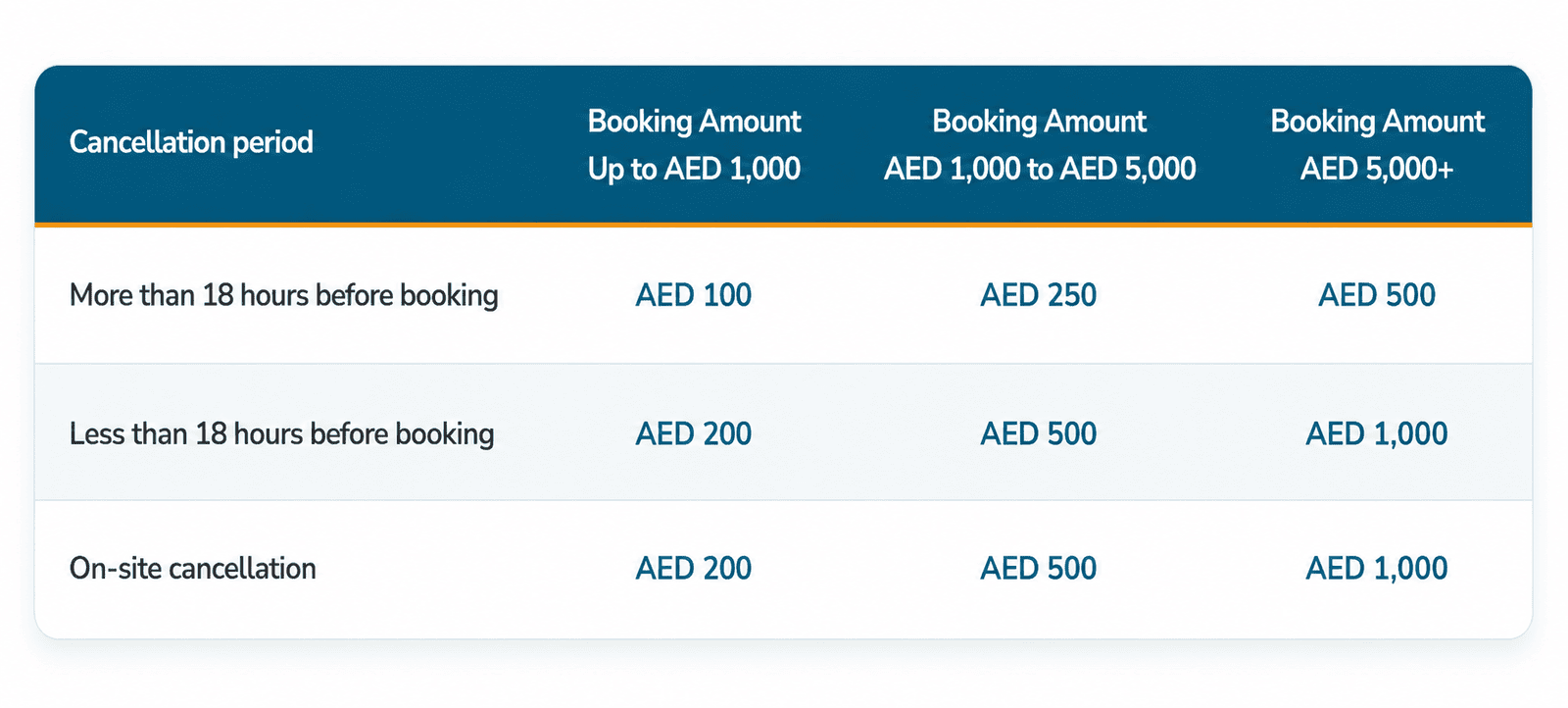
Cancellation Charges
When a booking is cancelled, especially close to the scheduled service time, it can affect planned operations and reserved service capacity.
To manage this, cancellation charges may apply depending on the confirmed job amount and when the cancellation request is made. If a refund is applicable, any cancellation charges or related fees will be deducted first, and the remaining balance will be refunded to you.
Please refer to the table for the applicable cancellation charges.
Contract Visits Confirmation
Please follow the updated process for Contract Visit JIT messages:
- 7 days before the visit: Call the client to confirm the appointment.
- If the client is unreachable, send the "Contract Visit – Unreachable" template via Sales IQ or Zoho.
- 2 days before the visit: Call the client again.
- If the client is still unreachable, continue following up.
- 1 day before the visit: If the client is still unreachable:
- Send the "Contract Visit – Rescheduled (14 Days)" template.
- Reschedule the visit 14 days later.
- After 14 days: Follow the same process again.
- If the visit is postponed twice (a total of 28 days) due to the client being unreachable, mark the visit as Completed and create a Tentative Visit for the next service.
Important Reminders
- Always add clear notes in Zuper for every action taken.
- Update Zoho after each client contact or action.
- Any contract visit booked within the next 14 days must be treated as a paid job confirmation. The team should attend the appointment whether the client answers the confirmation call or not.
✅ The required templates are now available in Sales IQ and Zoho.
Please ensure everyone follows this process consistently. Thank you!
2 - Step-by-Step Guide: Preparing and Issuing Permits
- If a pass or permit is not required, update the stage at least 3 days in advance.
- Dubai Properties Permit Process:
- Regarding Dubai Properties across all communities: the client will apply for the permit from their side through the application.
- It is mandatory to inform the client at least two (2) days prior to the scheduled date, as the permit will be approved only for the following two days.
- For Emaar and Nakheel, passes may be applied for 1 day prior to the job date.
- For any late team change:
- A) Emaar: Update the pass on the spot.
- B) Nakheel: Assign one additional carpenter and attendance on the approved pass to avoid changes.
- - Should be also add on the Zuper notes.
- Note: It is mandatory to review all upcoming jobs for the next days with your Supervisor before end of day.
- If unsure if a permit is required for the community/area/building:
- b) Search "Hello.email" for the address to see past examples.
- c) If still unsure, ask your captain or supervisor.
Sources :
After Issuing the Permit (Double-Check)
- Attach the permit to Zuper and update the job stage as per process.
Daily Pass & Permit Check (Next 2 Days)
- Go to Zuper
- Open the Jobs page
- Apply the “ Not Ready Jobs” filters based on the service category you are handling
- SF – Not Ready Jobs
- PC – Not Ready Jobs
- DC – Not Ready Jobs
Technical Services
- ES – Not Ready Jobs
- AC – Not Ready Jobs
- MS – Not Ready Jobs
- INS – Not Ready Jobs
Track and action the next three days’ jobs as per the pass issuance process.
- If Pass and permit is attached / Not requird, update the stage to pass and permit.
- If Pass and permit applied / In progress Keep the stage as confirmed with the right remarks and update it later once it's ready.
- Total Jobs for next 2 days: _____
- Total Jobs under Ready (Pass & permit stage ): _____
- Jobs still under Not Ready: ( New & Confirmed ): Must no jobe under new stage
- "Insert the jobs for Not Ready with the Reason " ______
- Total Jobs for next 3 days: _____
- Total Jobs under Ready (Pass & permit stage ): _____
- Jobs still under Not Ready: ( New & Confirmed ): Must no jobe under new stage
- "Insert the jobs for Not Ready with the Reason " ______
- SF – Ready Jobs
- PC – Ready Jobs
- DC – Ready Jobs
Technical Services
- ES – Ready Jobs
- AC – Ready Jobs
- MS – Ready Jobs
Inspectors
- INS – Ready Jobs
Month-to-Yesterday (MTY) Job Closing Procedure
- Log in to Zuper
- Go to the Jobs page
- Apply the MTY (Month-to-Yesterday) filters based on the category you handle
- Completed
- Photos and Area
- Quotation
- Reporting
- Inspection Checklist
- Cancelled
- Reschdule
- New
- Confirmed
- Pass & Permit
- In-Progress " On the Way - Started, Validation, Final Validation, Request to invoice, completion checklist, internal sign, schedule " with date".
Job Extension (MTY Follow-Up & Continuation)
- Go to Zuper → Jobs page
- Apply the MTY (Month-to-Yesterday) filters
- Identify jobs that:
- Appear on multiple days
- Are still in progress based on the original schedule
- If the job is still within the the designed and planned scheduled time:
- Keep the job under Multiple-Day Job
- Monitor daily until the scheduled end time is reached
- No action required at this stage
- Add in Zuper notes :
- Scope completed
- Scope pending
- Documentation in Zuper is required for audit and tracking
- If remaining work requires another visit or extended work:
- Proceed to create a Job Continuation (Child Job)
- Make sure that the supervisor approved on the job contiunation
- Job Category: Same as Parent Job category
- Type of Job: New Job
- Job Title: Job Continuation + Scope " EX: Job contunuation AC "
- The job is linked as a Child Job.
- The Parent Job remains properly referenced.
- Once the child Job is compeleted make sure that the linked parent job is updated to be comepeleted and requested to invoice.
- Pending scope of work
- Reason for continuation
- Follow the standard job confirmation cycle:
- Scheduling
- Client confirmation
- Pass & Permit (if applicable)
- If the client is unreachable:
- Keep the Parent Job under Multiple-Day Job
- Add the job to the tracking list
- Follow up later according to the confirmation process
- Tracked
- Documented in Zuper
- Either completed or linked to a continuation job
- No pending work is left without notes or ownership
- Standard Field Services (SF Services):
- Default travel time per job: 1 hour.
- Exception for coordinators: If the subsequent job is confirmed within the same geographic area, travel time may be reduced to 30 minutes, subject to explicit Supervisor (SV) approval.
- Other Field Service
- If calculated travel time is less than 15 minutes, allocate 30 minutes.
- If calculated travel time exceeds 15 minutes, allocate 1 hour.
- High-Impact Areas (Additional Buffer):
- Add +15 minutes " in case 30 min travel time only " to the standard travel time allocation for the following designated zones due to persistent congestion, parking constraints, and access challenges specially in peak time 4pm till 8 pm :
- JBR
- Dubai Marina
- Downtown
- Shoreline
- City Walk
- Dubai Hills
- Driver Allocation Responsibility:
- Coordinators must proactively assign teams to high-density/crowded areas to the team with drivers .
- Make sure to give the TL extra 30 min for the communities starting time for the early 1st job
- Escalate complaints or unexpected issues immediately to the relevant team.
- Identify and immediately correct any incorrectly rescheduled tasks.
- Clearly communicate all updates to relevant stakeholders.
- Coordinate with the Field Supervisor to ensure alignment on any critical or high-priority updates, and share confirmations in the Supervisor WhatsApp group once completed.
Daily Tasks related to the SLA
Hourly Tasks
UC App / WhatsApp
Check the UC app and ensure:
- Ongoing jobs have their Zuper stages updated correctly in real time.
- Next-day jobs are booked on Zuper.
- Escalate any cancellation or reschedule cases to your manager via the Business Coordination WhatsApp group.
- Send the hourly report to the Coordination WhatsApp Group with:
- New jobs recently added in the app and booked by you
- Ongoing jobs status numbers
- Next-day jobs status numbers
- Any cancellation or reschedule jobs (numbers + reasons)
Sales IQ(Chats)
- Respond to all chats promptly: pick up each chat as soon as it appears.
- Fulfill customer requests properly (rescheduling, cancellation, modification, contract management, etc.).
- Send the hourly report to the Coordination WhatsApp Group with:
- Number of chats in the queue
- Number of active chats
Convox (Calls)
- Ensure all calls are answered by selecting the correct Idle status in Convox.
- Never leave the queue open/idle.
- Escalate any issues immediately in the WhatsApp group.
Hello Email
- Respond to all emails promptly.
- Fulfill customer requests properly (rescheduling, cancellation, modification, contract management, etc.).
- Send the hourly report to the Coordination WhatsApp Group with:
- Number of unread emails
Zoho Tickets
Respond clearly and include specific actions for:
- Actions by the Coordinator
- Actions by the Procurement Team
- Ticket ownership by yourself or your group
- Send the hourly report to the Coordination WhatsApp Group with:
- Number of open tickets
- Number of tickets in progress
- Number of tickets pending for more than 24 hours (include reasons why)
Validation Filter – Zuper
- Filter Zuper validation requests: assign Greg for technical requests and Edward for non-technical requests.
- Check and fulfill TL (Team Lead) requests for validation; track all requests using Zuper filters.
- Ensure all TL validation requests are validated and their progress is monitored via Zuper filters.
- Send the hourly report to the Coordination WhatsApp Group with:
- Number of active validations in the queue (Zuper Filter)
Zuper Chat / General Requests
- Check and fulfill TL requests via Zuper chat.
- Document any alignments or actions that occur over the phone or other channels.
3 Times a Day (Zuper NAS Updates)
- Update NAS three times daily: at 8 AM, 1 PM, and 4 PM.
- Share the updates in the Salesforce WhatsApp group after each update.
Daily Tasks (Zuper)
End-of-Day EDD Report
- Share the EDD report with all required details by the end of your shift.
- Include notes for any pending concerns or issues.
Coordinations end of day Report
EOD " End of the Day " Report
1- Daily Pass & Permit Status – Next 2 Days
- Total Jobs under Ready (Pass & permit stage ): _____
- Jobs still under Not Ready: ( New & Confirmed ): ______
- "Insert the jobs for Not Ready with the Reason " ______
2- Daily Pass & Permit Status – Next the 3rd Day
- Total Jobs under Ready (Pass & permit stage ): _____
- Jobs still under Not Ready: ( New & Confirmed ): ______
- "Insert the jobs for Not Ready with the Reason " ______
Tip " Jobs under New stage should not appear here in this report"
Contract Administration Quick Guide:
1- Qoutations
Prepare quotations based on job requirements. There are two types of quotations:
Planned Inspection Quotes – based on job card in Zuper App if it is already booked..
Unplanned Inspection Quotes – based on inspector / TL initiating the inspection and it is not originally in job card in Zuper App. Tracked through service tasks, email, and Zuper notifications.
Attach the relevant inspection/assessment reports with each quotation.
HOW? (STEP BY STEP GUIDE)
Step 1 - Filter the jobs
Filter all jobs under the category Inspection from Zuper.
Go to the Jobs page.
Click the filter button on the upper right and set the dates from the 1st of the month until yesterday.
Sort all jobs from oldest to newest (ascending).
Step 2 – Access Customer Profile
Go to Customer Profile page in Zuper
Check scope of work History in CF/Zuper for big quotes +8K
Step 3 – Create the Quote
Click the ‘+’ icon → Select ‘New Quote’
Verify the address and customer details.
Step 4 – Add Services
Add the Line Item – Service
Add Service Charge
2.7% of the total service fees
Capped at 99
Service Charge Code: 842
Step 5 – Add Remarks
Start with writing “ Support Team”
Include details provided from TL to the Estimation Team.
Step 6 – Complete Quote Information
Select quote type: Planned or Unplanned.
Enter the Inspector/Technician’s name.
Enter the Job Number (Parent Job Number).
Step 7 – Save & Proceed (Assessment + Quotation) Report
Go to the Customer Profile page
Click the Job Number/Title for which you want to create a report
On the left-hand menu, click View Inspection Checklist
Click Edit Checklist (top-right corner)
Fill in all mandatory fields (*)
Review General Remarks for grammar, spelling, and clarity
Click Update to save and finalize
Click Print/Share → Download PDF report if needed or Save & Send
Update the Job Stage to “Quote”
Please check the video attached for your reference:
https://drive.google.com/file/d/1G1lSca7fK48FiJLdQVSurcqwpFaORbfX/view?ts=68cd27bf
2) Quote - Unplanned (Click Here for Video)
Step 1 - Filter the jobs
Filter all jobs on email with title New Inspection.
Sort all jobs from oldest to newest (ascending).
Step 2 - Access Customer Profile
Go to the Customer Profile page
Check scope of work History in CF/Zuper for big quotes +8K
Checking the service task checklist.
Step 3 – Create the Quote
Click the ‘+’ icon → Select ‘New Quote’
Verify the address and customer details
Step 4 – Add Services
Add the Line Item – Service
Add Service Charge:
2.75% of the total service fees
Capped at 99
Service Charge Code: 842
Step 5 – Add Remarks
Start with “Start Support Team”
Include details provided from TL to the Estimation Team.
Step 6 – Complete Quote Information
Select quote type: Planned or Unplanned
Enter the Inspector/Technician’s name
Enter the Inspection Job Number (Parent Job Number)
Step 7 – Save & Proceed (Assessment + Quotation) Report
Go to the Customer Profile page
Click the Job Number/Title for which you want to create a report
Create a Child Job and add all relevant details
If a report is required, create the Inspection Checklist (applies mostly for AC, WT, Mold, and Liner services)
Click Edit Checklist (top-right corner)
Fill in all mandatory fields (*)
Review General Remarks for grammar, spelling, and clarity
Click Update to save and finalize
Click Print/Share → Download PDF report if needed or Save & Send
Update the Job Stage to “Quote”
Please check the video attached for your reference:
https://drive.google.com/file/d/15kmiMCS8aDM0q3a1ST-it0gt4h2OBdur/view?ts=68ce826d
2. Completion Reports
Prepare and send completion reports to clients.
Ensure all reports are accurate, complete, and aligned with service standards.
Currently, completion reports are sent only for the following categories (until extended to all jobs or upon customer request):
To be sent on regular basisAC jobs – including Full AC services.
ES services – including Premium, Duct Cleaning, Coil Cleaning, Mold & Liner, Water Tanks.
HOW? (STEP BY STEP GUIDE)
Step 1- Filtration Stage
In Zuper, use the saved filter “Job Required Completion Reports”
Download yesterday’s jobs
Update the Daily Completion Reports excel tracker downloaded from Zuper
Sort jobs by ending time (oldest → newest)(ascending)
Step 2 - Preparation Stage
Take the Job Number → Locate the job in Zuper
Check and edit the Completion Checklist Stage done by team leader> Grammar and clear comments
Review attached photos by team leader in job, area and photos > Clear, not duplicated and with correct location stamp
Send the report from Zuper after choosing the correct template.
Attach the report in Zuper and Zoho CRM after choosing correct template (A waste of 2 hours per day, 3 mins per completion report)
Update Zuper stage to reporting
Step 3-Completion Stage
Update the Daily excel Tracker Sheet and share it in WA group
Please check the video attached for your reference:
https://drive.google.com/file/d/1UgsRYMD95zTa0pVGnWl-v5pHo_fWRZK4/view?ts=68ce7d49
3. Zoho Tickets
Based on inspection report, create a ticket related to MS jobs for SCAT and the Quality Team to action.
Action client requests report follow ups or adjustments via tickets.
Prepare both: based on requests (SF, PC - They have ready templates) OR Manual reports for other scenarios that they don’t have templates: DC, revisits…etc. via tickets.
Step 1: Filter on Zoho Desk
Use the filter to view tickets under the type TBA by the Admin team.Check open tickets regularly.
Step 2 : When handling a request:
Update the ticket stage to In Progress.
Once completed make sure of “ Mention the requester’s name in the ticket. Add your comments. Attach any required documents.
Change the ticket owner to the person who will receive it.”Update the ticket status to be closed.
Closure discipline: Always ensure tickets are closed on or before the due date to avoid SLA violations.
Daily check: Review all open tickets before leaving the office.
Please check the video attached for your reference:
https://drive.google.com/drive/search
4. Job Closure & System Updates
Receiving DJS reports from TL and document the jobs for up/downsell.
Close daily jobs in Zuper for team leader who missed to request for invoice in stage.
Update the system to confirm all jobs are completed in Zuper and Zoho CRM.
Zuper Jobs
Collect the DJS from the DJS box / Daily report group in WhatsApp.
Filter jobs from yesterday and export the data.
A) Check for cancelled jobs and multiple jobs If not actioned properly (actually cancelled as a stage or no follow up visit, to be raised to coordination via Zuper chats)
B) Review the DJS one by one by Team Leader for upsell and downsell, Go to Zoho Job Card record that will reflect an excel report for up-sell and downs-sell
C) For each job, check the profile to see if invoice has already been issued under the section of “Invoice Created”. If no invoice, click ‘Job Tags’ and select ‘Invoice’.
Zoho Crm
Check the deals in Zoho.
Verify if the amount and job date in Zoho match the records in Zuper.
If everything matches, mark the job as ‘Completed’.
Recording Incentives
Check if the job is On the Spot / Unplanned / Planned and record it in ‘Job Card Closing’.
Check if there is any On the Spot Upsell for SF Contract / PC Contract / AAC Contract and record it in ‘Job Card Closing’.
Check for social media shares in the ‘Team Leader’ group chat and record them in ‘Job Card Closing’.
5. MS Admin
A) Direct Quote: If pricing is fixed.
1) Prepare a quote ( If the quote preparation will take more than 24 hours from the inspection day, MS Coo. will call the customer and will inform only about the delay of the quote)
2) Prepare the inspection report
B) Procurement-Involved Quote:
1) MS Coo. will raise a ticket to procurement requesting for the availability of the material and the prices Incase it's not a fixed price .
2) Prepare a quote ( If the quote preparation will take more than 24 hours from the inspection day, MS Coo. will call the customer and will inform only about the delay of the quote)
( Material availability will be mentioned in the quote).
3) Prepare the inspection report.
HOW? (STEP BY STEP GUIDE)
Step 1 - shift start
Go to Zuper Quik Filter from the jobs pages, choose the Daily MS Inspection report
Update the filter with the job schedule date and time, and filter with custom, choose the date of today
Export the date to the MS Tracker on Google Excel sheet and copy the requirement details, and copy it to the MS tracker shared Excel sheet
The requirement data range in the tracker from A to E for the following requirement data
Scheduled Date
TL
Zuper Job Number
Client name
Contact Number
Step 2 - Mid of day and if you have time
Check by job number you have listed in the tracker if the job is completed and the inspection checklist has been filled.
If Yes, the job is completed and the checklist if filled you follow the below:
Check the Inspection checklist and edit if it’s need from the grammar part or if anything is missing.once it’s done
Go to send the inspection report to the client by choosing the report name: AC maintenance inspection report - June 2025
If Not, based on the system or TL
Step 3
After sending the Inspection report, start preparing the quotation report that include
Service
Material
Duration
Man power
Remarks for important thing “ such the needs of access panel , ect .. “
B) The MS quotation can created directly by the agent if the price is fixed base on this Calculator.
Tip: if the fixed item will take extra hours more then the expected one we update the price based on the labor charge with updating the discretion based on the estimation that done by TL
C) The MS quotation for non fixed price , create an internal ticket request with the details of the required material bases on inspection checklist findings and assign to the procurement team. include the ticket:
Description the the part.
Model and dimensions.
Quantity of the part that need.T
Tip: If the quote preparation will take more than 24 hours from the inspection day, Coo. will call the customer and will inform only about the delay of the quote)( Material availability will be mentioned in the quote.
How we prepare the quota and assessment reports
check the inspection checklist if no need for edit or adjustment. go to the next step
print and save under maintenance inspection template.
Save the report as PDF and recheck if everything is alright.
Go back to the bottom of the page find attachment part, upload the saved copy of the assessment report.
Go to the up right the page and press save and sent part.
Choose the template AC maintenance inspection report - June 2025
Check the client email and submit the report to share.
go back to Inspection checklist and review the concern and remarks
list the material if need and sent thru ticket to the procurement to send. if fixed price material go directly to the point number 11.
Once you get response from procurement proceed the next step.
Go to choose a new quote from customer profile page
make sure the address and the customer details is match with the job
Go to part of add service and ad the parts.
Edit the line item if it’s needed, based on the description or estimated hours base on the TL Inspection checklist.
add the remarks for the main findings , duration, manpower, assigning TL and main other important notes to let the estimation team needs to highlight to the client. ending the remarks with statement “ Maintenance team”
16) fill the required data with the
Type of the inspection planned / unplanned
Name of the TL who did the inspection
the job number
the external remarks “ After the above procedures, The team will check the entire AC unit’s performance and if it’s required a sparet quotation will be shared.
17) Update the stage of the Job to be quotation as final stage. “
Tip: labor charge rate is 200 aed per hour. when we add it
If the estimated time of the fixed price material more then our calculator estimated hours.
with the material prices that we are got from the procurement.
Tip 2: we add the ticket number that we have reside to Procurement for the material in the remarks to let the estimation team able to find it and create the child job requesting the material once the booking is confirmed with the client.
Tip3: Deposit for MS it should be 70% form the total. if the job fees only 500 aed it should be 100%.
Tip4 4: we don’t send the Inspection report for the revisit - we send only quotation.
How update the MS tracker (Click Here for the link)
Start shift
Add today jobs the 1st thing on the MS Google tracker sheet, from Column A to E for the following requirement data.
Before end the shift.
Complete to fill the column from F to N.
F: Inspection Status: Completed/ Not Completed/ Re- Inspection needed / Job completed on spot / Cancelled
G: Quotation Sent: Yes / No or Not Required / Waiting for the price
H: Inspection Report prepared: Check box
I: Sent for approval: Copy the time of send the request for approval.
J: Quota Sent: Copy the time of sending the quotation.
k: Remarks / Reasons: any comment need to be highlighted.
L: Update the Quotation status: Check box
M: Comments: Quote number
N: Parts Validation: parts/without parts.
Fill the daily MS report and send it on the whatsapp group of the coordination team.
How we report.
Maintenance Inspection Jobs Vs. Inspection Reports & Quotations Daily Report
1- Total Number of planned Inspection Jobs for today to be done next working day (09/25/2025): (0)
Breakdown:
2- Month to yesterday total number of Planned Pending MS inspection/Quotations: (0)
Breakdown:
3- Total Number of unplanned Inspection Jobs for today to be done on next working day (09/25/2025): (0)
Breakdown:
4- Month to yesterday total number of unplannedPending MS inspection/Quotations:
Breakdown:
5- Daily Done: (0)
Breakdown:
6- Month to Date Done: (0)
7. Jobs with ticket That Shared to MS-Procurement Group by Time
Breakdown:
Fill the daily MS report and send it on the whatsapp group of the coordination team.
all the reference in this link: https://drive.google.com/file/d/12gg8RVsrFcnBH0hbnU78B9cOsQkc--uz/view
5. End of Day Checklist
Did I send all the quotation reports from month to yesterday? How Many ?
Did I send all the completion reports from month to yesterday ? How Many ?
How many Inspection needs for quotation for today?
How many quotation sent of today’s inspection ?
Did I closed all jobs from Month to yesterday ?
Did I reposed all ticket under action by admin for today?
End of day reporting for delays or mistakes from Field Ops regarding inspection or completion checklists:
6. How do we track and monitor?
🔹 Unplanned Quotes
Track the job end date/time against the date/time of the quote was sent → this will provide accurate SLA rate.
Measure how many quotes are sent daily vs. INS jobs “ service task on unplanned Ins. jobs” → this will prevent any missing reports
Apply filters to monitor the number of jobs that include service task. → this will provide us the productivity of the team and the min/max capacity of the daily jobs.
🔹 Planned Quotes
Track the job end date/time against the date the quote was sent. → this will provide accurate SLA rate.
Track the job ending schedule time vs update the stage of Inspection checklist. → to provide us if there’s lateness of updating the job from field team leaders side.
Measure how many quotes are sent daily vs. INS jobs.
Apply filters to monitor the number of jobs.
🔹 completion Report
Track the job end date/time against the date the sending the completion report → this will provide accurate monitoring numbers.
Measure how many Job required Completion report.
Apply filters to monitor the number of jobs that are done and the jobs are not done.
7. KSA Closing
CF Closing (During Job Closing)
At the time of closing on CF, please ensure the following payment methods are closed as applicable:
PayTabs – Close while closing
POS – Close while closingonly if a POS Slip photo is attached/available
Cash – Close while closing only if a cash photo is attached/available
This will help ensure payments are captured accurately at source and minimize r
PayTabs Daily Transaction Report
The Daily PayTabs Transaction Report is now set to be shared with you automatically on a daily basis.
Once received on the Finance email, it will be forwarded to your email for tracking and for applying payments on CF invoices.
SOURCE FILE: HERE
Mold Minimum Charge:
Effective 22/10/2025:
- Any Mold Inspection received with a value below AED 500 should be adjusted to AED 500 by the Admin team in the quotation sent to the customer.
- The Admin team should leave an internal note to the Estimation team indicating the actual charge amount and that the price was adjusted to meet the minimum charge requirement.
Hourly report
1- Daily report of the confirmation email " mis report "
- Daily Confirmations Done: [Number] jobs updated to Confirmed.
2- UC Update
- Number of new Jobs that add recently in the app and you booked
- Number of on going Jobs :
- status of on going Jobs :
- Number of next day Jobs numbers and status:
- Number of Cancellation or Rschedule jobs and reasons ?
3- Karix Update
- How Many Chat on the Queue ?
- How Many Active Chat ?
- Coordination / Contract
4- Convox Update
- Number of missed calls per agent " --- " / per team " --- "
5-Hello Email Update " Hello & Contract "
- Number of the unread email ?
6- Zoho Tikcets
- How Many tickets open
- How Many tickets In prograss
- How Many Pending for More 24 H and the reason why ?
- Times : Hourly
7- NAS Update
- Update the NAS three times daily: at 8 AM, 1 PM, and 4 PM.
- Share the updates in the Salesforce WhatsApp group after each update.
Admin end of day report
EOD " End of the Day " Report
1- Go to Zuper > Job Page > Choosing the filter name: Inspection Tracker.
2- Update the date to Month-to-yesterday.
3- Checking that all jobs has qoutation status.
4- Share a screen shot before leaving shift in Admin Whatsapp Group.
Sales IQ - Chat
Training / Team Reminder – Chat Handling & Shift Handover Rules
If the client is still not responding when your shift is about to finish:
- Do NOT leave the chat open and abandoned.
- Transfer the chat to the next open shift (usually morning shift if you're closing, or closing shift if you're morning).
If the client has not replied for 2 hours (at any point):
Send the following closing message exactly (or very close to it):
textLooks like you’re busy, no worries! 😊 We are always here to assist you. Simply reply with **'agent'** at any time to continue the conversation, and we will be happy to help.Then close the chat.
Quick summary – correct handover flow
- Your shift ending + client silent → Transfer to next shift
- Client silent ≥ 2 hours → Send polite closing message → Close chat
- Never leave chats open and unattended after your shift
Following these steps ensures:
- Clients always feel taken care of
- We don’t accumulate hundreds of dead chats
- The next shift/agent can pick up properly if needed
- Overall chat KPIs and client satisfaction stay healthy